Brand the signing experience
Set sender identities and customize signing emails.
Read as Markdown · Open in the interactive guide
Use the right company name, logo, color, and sender throughout a signing request.
Create a brand
- Open Portwood → Brands → Add Brand.
- Enter an internal Brand name.
- Set its Company name, Brand color, and Footer text.
- Choose Send emails from if this brand uses its own verified Organization-Wide Email Address.
- Choose a logo URL or shared Asset file.
- Leave it Active and save.
An inactive brand is not available for new selections; existing assignments fall back to the org default while it is inactive.
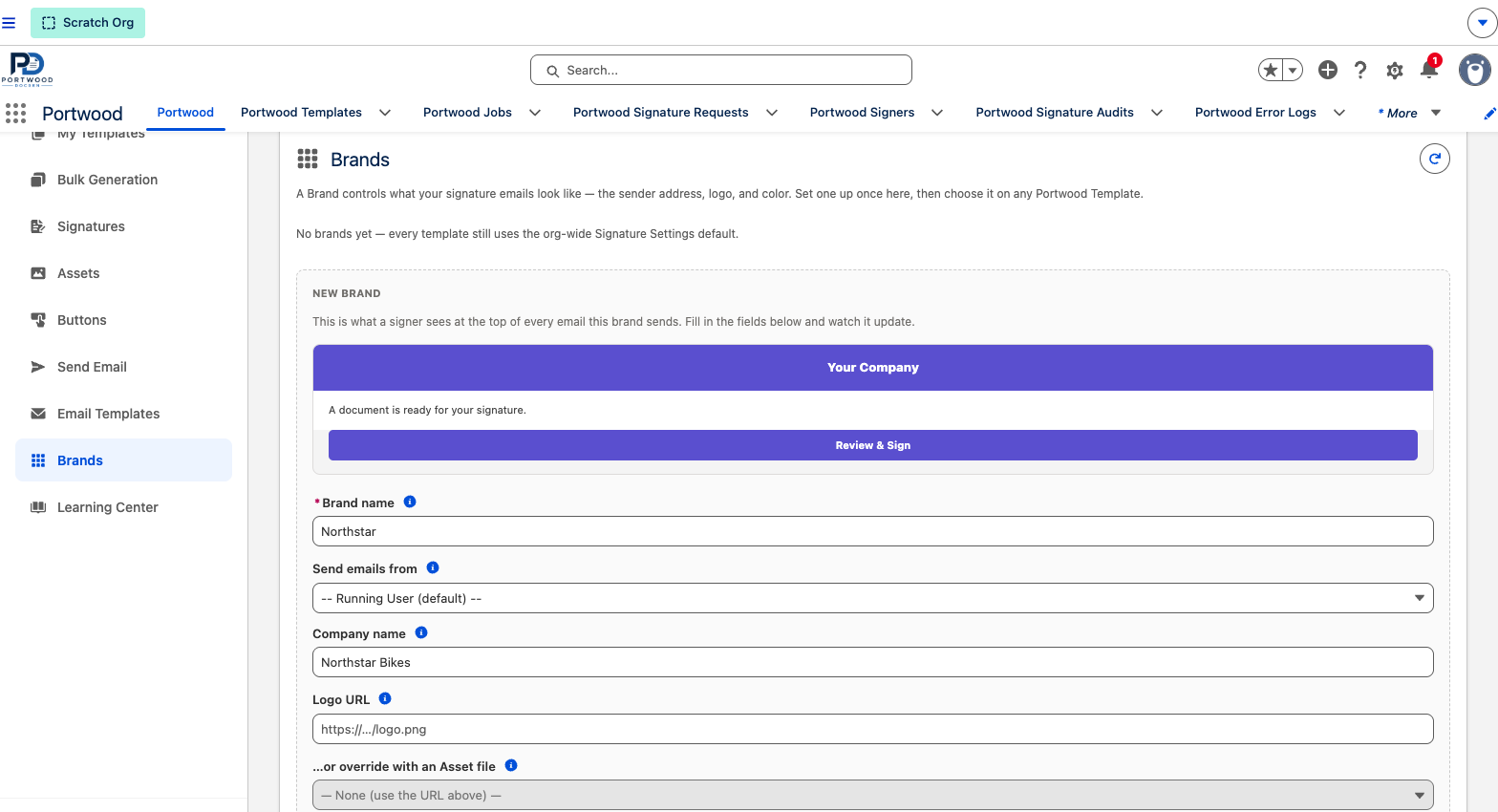
Use it on a template or uploaded PDF
Set the template's Sending Brand. For an uploaded-PDF request, choose Signing Brand on the review step.
Brand settings are reused. To change a document's actual logo or content, edit the document template as well; a signing brand is not a replacement for the document body.
Change the signing emails
- Open Email Templates.
- Choose the email type, such as Signature Request or Email Verification Code.
- Leave Brand = Shared / Default for shared wording, or pick a brand for an override.
- Edit the subject and body.
- Review the live sample and use Send Test to an inbox you control before using it with recipients.
There are seven email types: request, reminder, verification code, signer completed, all signatures complete, signer declined, and completion confirmation.
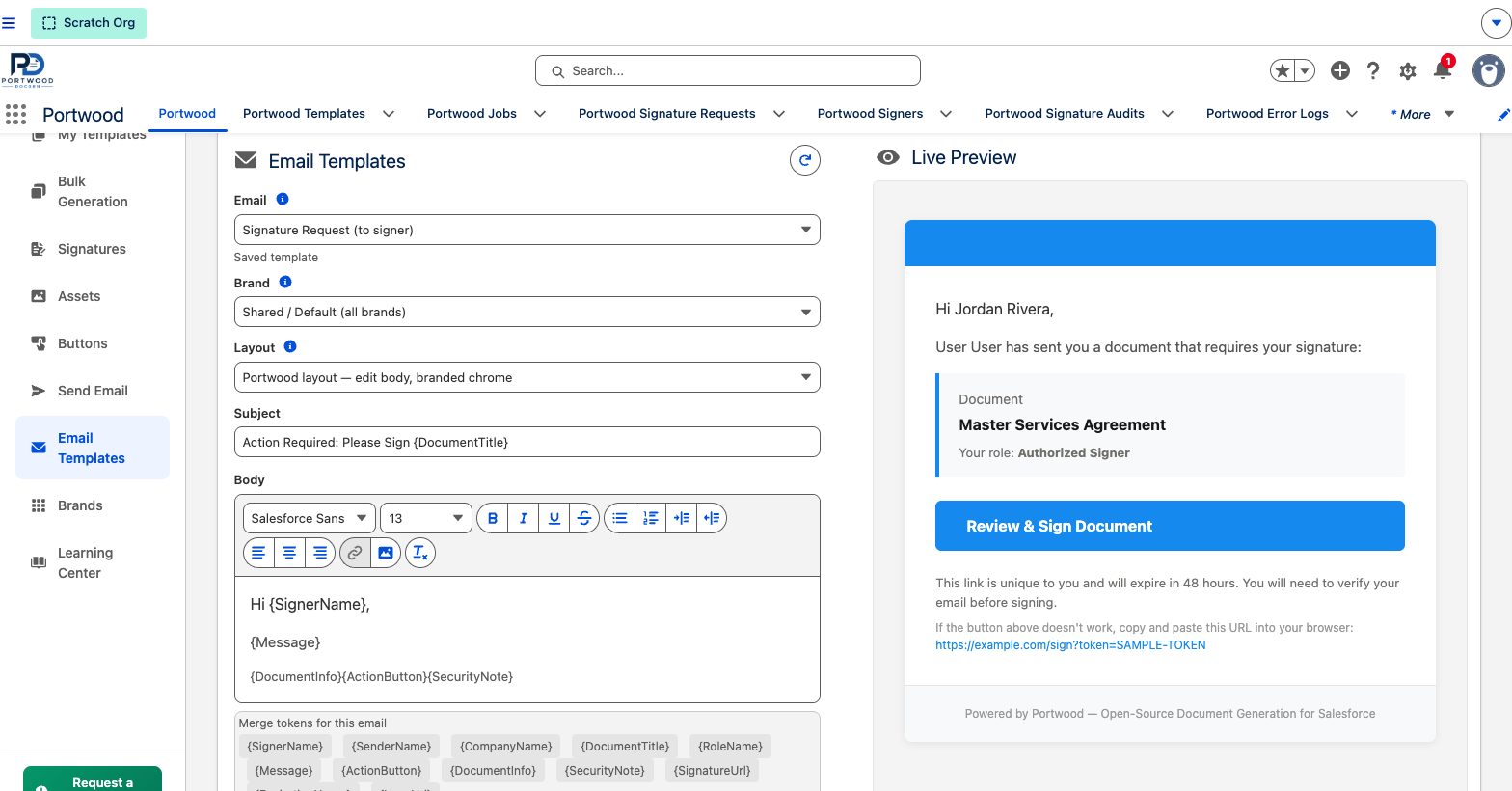
Keep the signing controls
The default Portwood layout adds the branded frame around your body. Full custom HTML gives you the complete layout.
Keep the required link or code tokens when customizing. {ActionButton} creates a signing button; {VerificationCode} creates the PIN block. If you replace a widget with custom wording, preserve the underlying {SignatureUrl} or {Pin} token as appropriate for that email type.
Email images need absolute, publicly reachable URLs. Shared-asset email images require Salesforce Content Deliveries/Public Links support. An internal Salesforce file URL that works for you can be broken in a recipient's inbox.
Know which settings win
For visual wording and styling, a saved email type + brand override is most specific, then the brand identity, then org defaults, then built-in defaults. Sender selection uses the brand sender when eligible, otherwise the org sender.
Automated reminder emails currently use the org-wide identity rather than the selected brand. Check reminders separately when operating several brands.
The active signing and verification experience follows the selected brand. Final success and waiting confirmations remain plain.
The complete email-token and custom-button reference lists the available values for each email type and shows how to replace a widget while preserving its link or verification code.