Choose the information in a document
Select record fields, parent information, and related lists.
Read as Markdown · Open in the interactive guide
Tell the template which information it can use. Selecting a field makes it available; placing its tag decides where it prints.
Example: An Account brief needs the Account's name, the owner's name, and a table of Contacts.
Open the field chooser
- Canvas: Click Data.
- HTML designer: Open the Query panel.
- Template configuration: Open Query Configuration and use the visual builder.
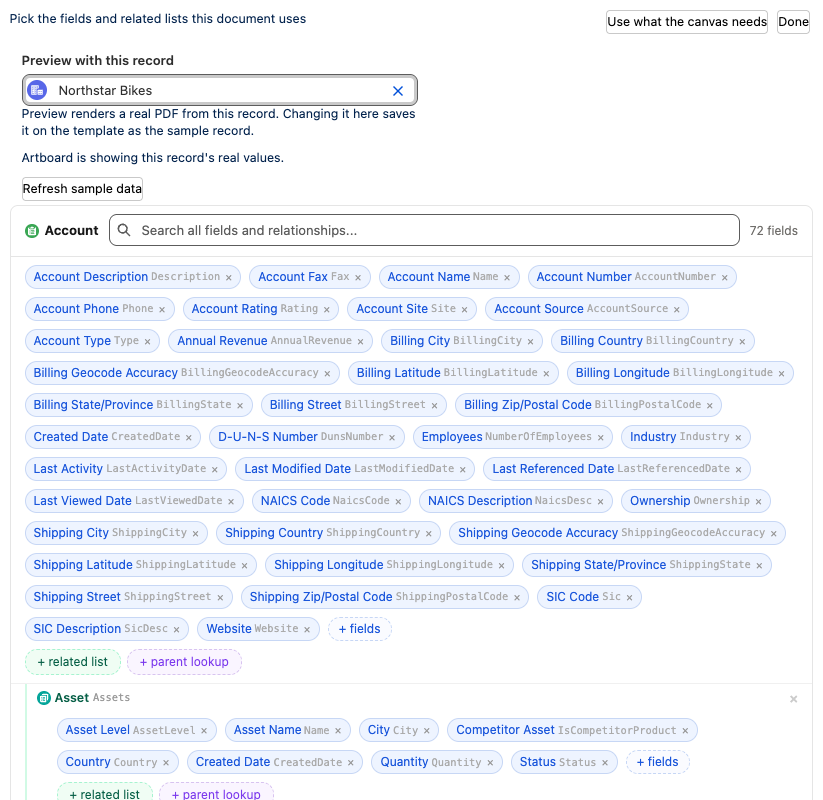
Pick information on the record
Select Name, Phone, or any other fields you need from the base object. A base object is simply the type of record you generate from: Account, Opportunity, Case, or another object.
Use search to find fields. Prefer the controls that insert or copy tags so the field's spelling is exact.
Pick information from a linked record
Choose + parent lookup and follow the link. For example, an Opportunity's Account → Account Name becomes {Account.Name}. An Account's Owner → Full Name becomes {Owner.Name}.
A linked record supplies one value. Use a related list when there can be many values.
Pick a related list
- Choose + related list.
- Select Contacts.
- Include First Name, Last Name, Email, and Title.
- Check the list's Tag name. Use that name in a repeating table.
- Set a sort order if row order matters. For example, sort Contacts by Last Name, ascending.
Each related list can have its own filter, sort, and limit. A filter on Contacts changes the Contacts printed in one document. A filter in Bulk Generation chooses which Accounts get documents; it serves a different purpose.
Test before adding more
Save the template and preview a record with values in the fields you chose. If a value is missing, check the record, field selection, tag spelling, and the generating user's access to that field.
For more complex data, see Use prepared or custom data. Manual query formats and provider code live in the query reference.