Find your way around
Know which screen to open and which save button to use.
Read as Markdown · Open in the interactive guide
Use the Portwood app to build and maintain documents. Use a Salesforce record to generate a document for that record.
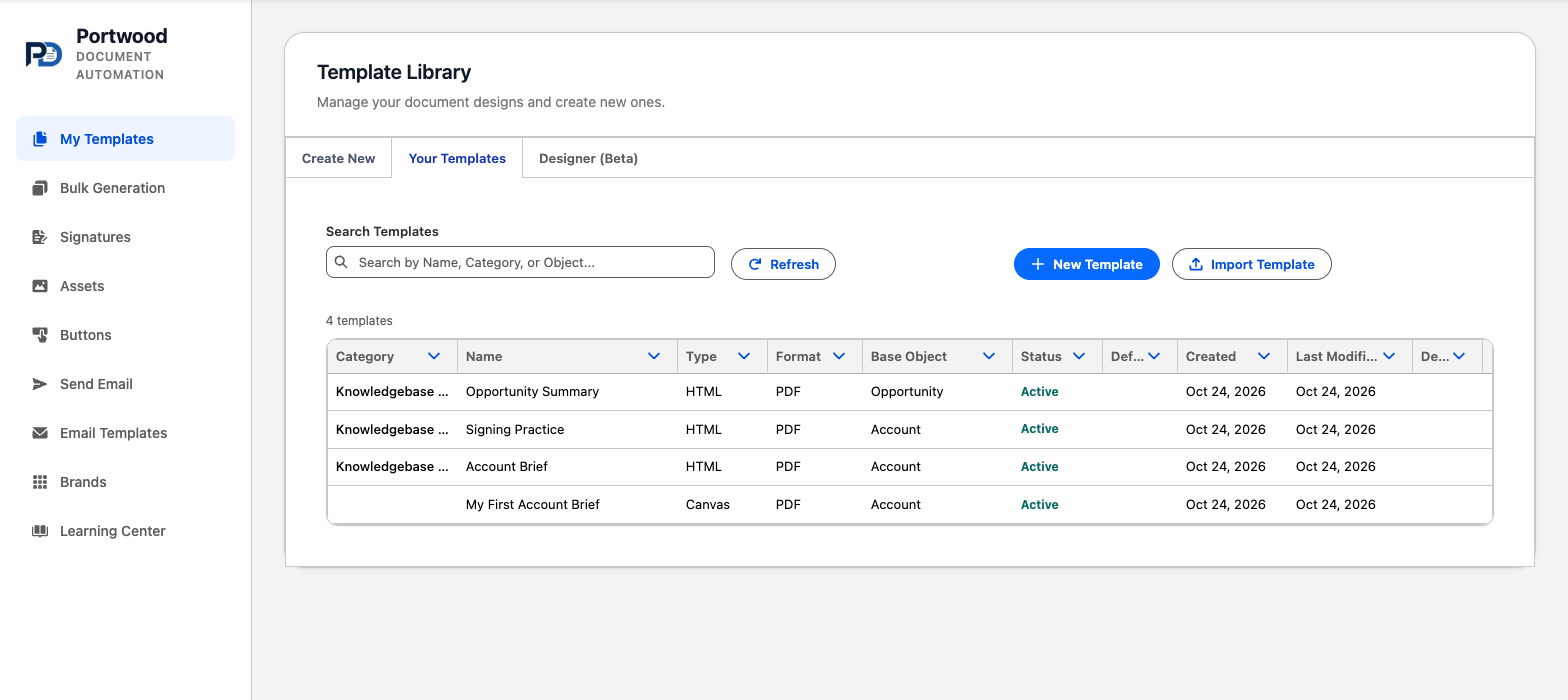
In the Portwood app
| Place | Go here to… |
|---|---|
| My Templates | Create, design, test, copy, and organize templates |
| Bulk Generation | Make documents for many records and review job history |
| Signatures | Configure signing-site, email, verification, and reminder settings |
| Assets | Manage shared images and custom PDF fonts |
| Buttons | Configure record-page document buttons, if you have button-manager access |
| Send Email | Configure record-page document email buttons, if you have button-manager access |
| Email Templates | Edit the emails sent during signing |
| Brands | Create reusable company identities for signing |
| Learning Center | Open this guide |
Signatures in the left menu is the settings area. To send a request, open the relevant Salesforce record and use Portwood Signature Sender.
Inside My Templates
- Create New starts a template.
- Your Templates lists saved templates. Use Search Templates to find one.
- A row's Show actions menu includes View, Edit, Design, Clone, Export, and Delete.
- Design opens the appropriate editor. Edit opens the template's configuration.
Two different save buttons
In Canvas, use Save. In the HTML designer or file editor, use Save as New Version to make a changed document body active.
A settings-only save does not publish a newly uploaded document. If you uploaded a replacement file, finish with Save as New Version.