Generate a document
Choose a template, create the file, and find it again.
Read as Markdown · Open in the interactive guide
Make a document for the Salesforce record you are looking at.
Before you start: You have Portwood User or Admin access. Your administrator has added Portwood Runner, and there is an active template for this record type.
Make the document
- Open the record, such as an Account or Opportunity.
- Find Portwood Runner.
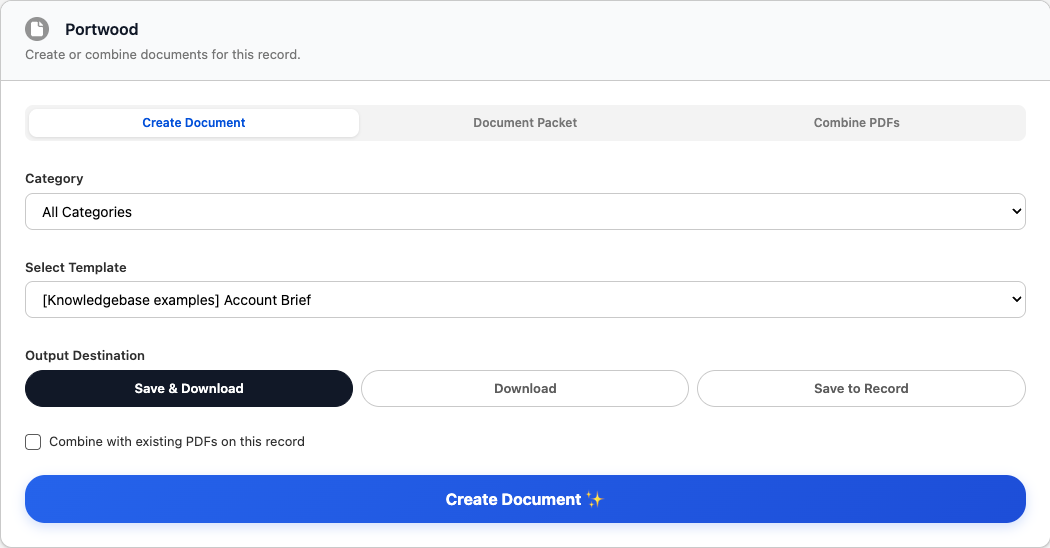
- Choose the template. Use its category filter if the list is long.
- Choose where the file should go:
| Destination | What happens |
|---|---|
| Download | A file downloads to your computer |
| Save to Record | A file appears in this record's Files |
| Save & Download | One generation provides both copies |
- If an output-format choice is shown, choose the permitted format you need. Otherwise, the template's saved format is used.
- Click Generate and wait for the result.
- Open the file and check the name, important values, and all pages before sharing it.
Your page may show only one destination. Your administrator can hide choices the team does not need.
Find a saved file
Open the record's Files related list. Refresh it if a background generation has just finished. Use the file's preview or download action to open it.
When a document takes longer
Records with large related lists can generate in the background. Follow the runner's status message instead of repeatedly clicking Generate. Check the record's Files or the relevant job before starting another copy.
Large native Office files may download first and show a drag-to-attach step. Use that uploader when the runner asks for it to finish saving the file to Salesforce.
If you cannot find the template
Check that you opened the right type of record. Then ask the template owner to check its active version, Active setting, and visibility rules. A template for Accounts does not automatically appear on Opportunities.
On mobile, the runner uses Save to Record. Open the saved file through Salesforce.