# Build a linked contents page and a draft watermark
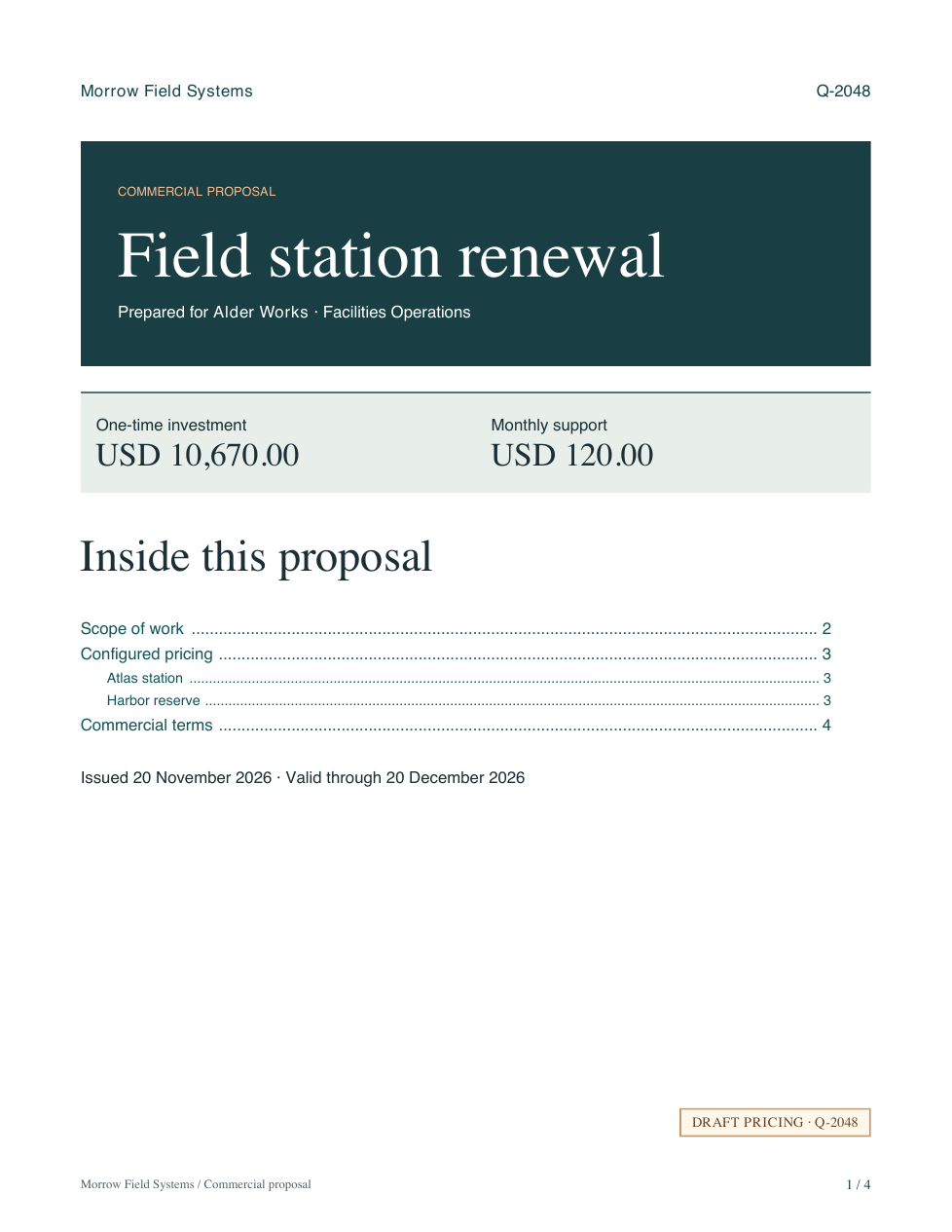
Give the reader shortcuts through a long PDF. In the finished proposal, every entry on the cover links to the named section. The dotted leaders end in the current page number. The draft copy also carries its quote number on every page.
[Open the finished proposal](https://portwood.dev/demos/studio/field-quote.pdf) · [Read the text edition](https://portwood.dev/demos/studio/field-quote-reading.html) · [Download the design files](https://portwood.dev/demos/studio/document-studio.zip)
[View HTML](https://github.com/Portwood-Global-Solutions/Portwood/blob/main/docs/knowledgebase/examples/document-studio/field-quote.html) · [View data](https://github.com/Portwood-Global-Solutions/Portwood/blob/main/docs/knowledgebase/examples/document-studio/field-quote.json)
#### Create an entry and its destination
Put this link on the contents page. Give the section heading the matching ID. Keep the ID unique across the document.
```html
Configured pricing
Return to contents
```
Give your contents heading `id="contents"` for the return trip. For repeated sections, use a short permanent key for each item. The sample uses `href="#bundle-{Key}"` in the contents and `id="bundle-{Key}"` on the matching bundle. Two products can have the same display name and still need different keys. Gate an optional entry and its destination with the same condition.
#### Let the renderer calculate the page
```css
.contents a { display: block; text-decoration: none; }
.contents a:after { content: leader('.') target-counter(attr(href), page); }
.section { page-break-before: always; }
```
The link supplies the destination. The CSS adds the dotted line and the page where that destination actually landed. In the supplied PDF, **Commercial terms** is on page 4. We added 42 component lines and generated again. The terms moved to page 7 and the contents entry and link moved with them. This is a contents page inside the PDF. Open the downloaded file in a PDF reader to test a jump in each direction.
#### Print a watermark from HTML
For review copies, put a fixed element near the start of the body. Bind the optional block to a Boolean and print a record-specific value in the mark.
```html
{#IsDraft}DRAFT PRICING · {QuoteNumber}
{/IsDraft}
```
```css
.stamp {
position: fixed; bottom: 0; right: 0;
font: bold 9pt Helvetica; letter-spacing: 1pt; color: #674329;
border: 1pt solid #c19a72; padding: 3pt 7pt; background: #fff8ea;
}
```
The proposal puts the stamp at the bottom of the printable area and its folio in the bottom page margin. `IsDraft: true` printed the stamp on all four pages. With `false`, the longer release copy had no draft stamp. Reserve that corner so the mark has room when a table grows. For diagonal artwork or a full-bleed letterhead, upload a pre-sized image under **Watermark / Background**. [Use page artwork](#page-layout)
#### Add running folios
```css
@page {
size: Letter; margin: 0.65in 0.72in 0.85in;
@bottom-right { content: counter(page) " / " counter(pages); }
}
```
The sample supplies its own page CSS and leaves Portwood’s separate Header HTML and Footer HTML empty. If your existing template already has a branded footer, use its [running footer recipe](#running-headers-footers) and choose one place to draw the page number.
To try this with your own data, start with [Generate a studio sample](#document-studio).
---
Related articles
- [Build a quote with nested bundle pricing](https://portwood.dev/knowledgebase/cpq-quote.md)
- [Build rich headers and two-line page footers](https://portwood.dev/knowledgebase/running-headers-footers.md)
- [Design an advanced document with print CSS](https://portwood.dev/knowledgebase/css-print-lab.md)
[Browse the article directory](https://portwood.dev/knowledgebase/)