Make documents for many records
Preview, filter, sort, and run a small batch first.
Read as Markdown · Open in the interactive guide
Make one document per record without opening every record yourself.
Before you start: Check one document first. Use an active template and a filter that selects only the intended records.
Try a small run
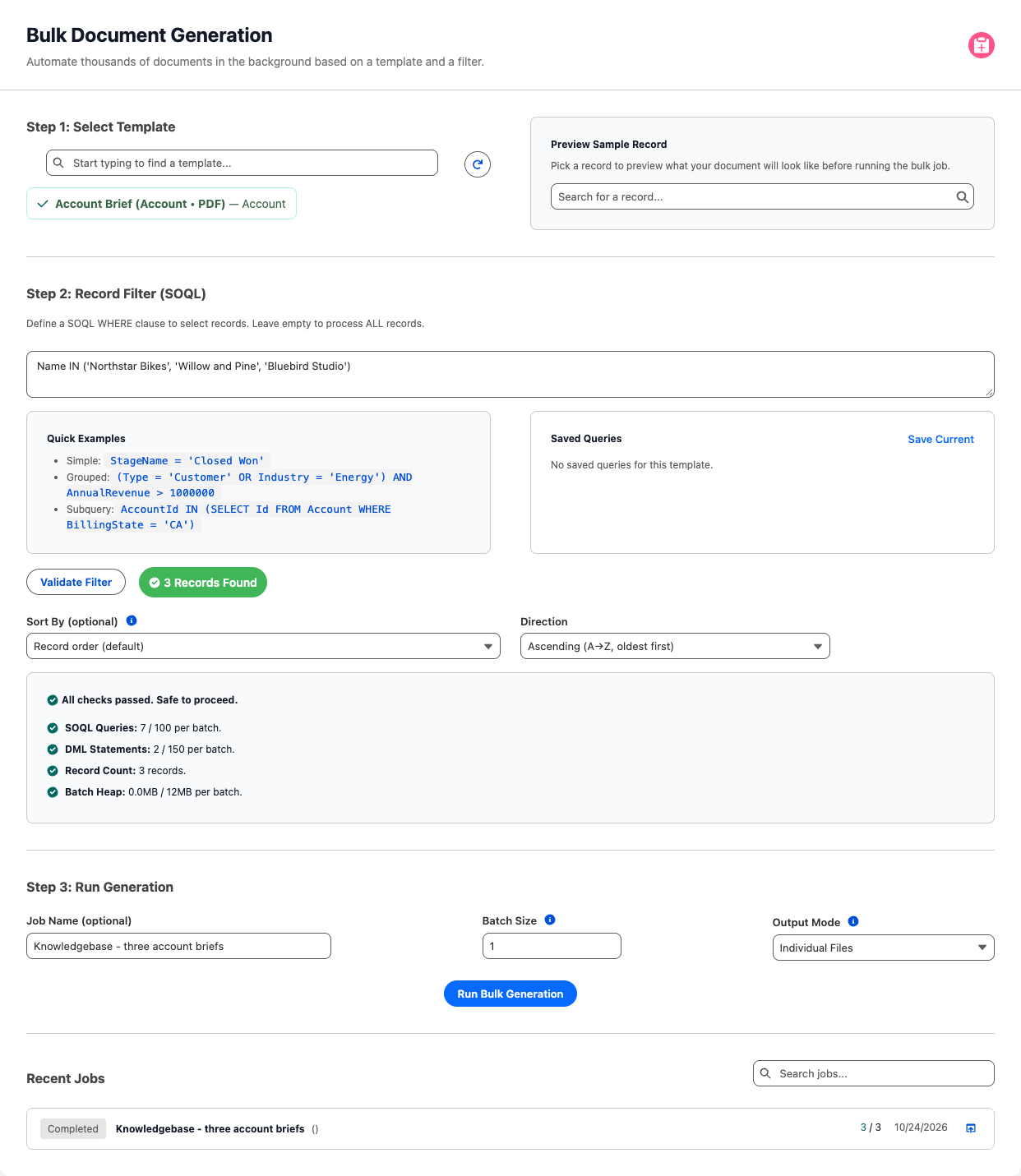
Open Portwood → Bulk Generation.
Select the template.
Choose a saved filter or enter a SOQL Condition. For the fictional Accounts in this guide:
Name IN ('Northstar Bikes', 'Willow and Pine', 'Bluebird Studio')Click Validate Filter and check how many records match.
Select a Sample Record and click Preview Sample PDF when available.
Choose the output mode.
Give the job a useful name. Leave Batch Size = 1 for your first run, especially with images or charts.
Click Run Bulk Generation.
Review the job and its files when processing finishes.
The condition is the filter only. Do not include SELECT or the word WHERE in that field.
Filters can traverse supported standard lookups as well as custom relationships. For example, use RecordType.DeveloperName = 'Partner_Account', Owner.Email = 'owner@example.com', or a custom Account__r.Region__c = 'West' condition when those fields are available on the selected object. The same relationship rule applies to child-record filters. If the object has no Record Types, or a Record Type value is malformed, the validation message explains the issue. Keep the filter to conditions the builder allows; unknown fields and disallowed SOQL keywords remain rejected.
Choose the right output
| Mode | Use it when… |
|---|---|
| Individual Files | Each record needs its own file |
| Print-Ready Packet | You want one PDF covering the selected records |
| Combined + Individual | You need the individual files and a combined PDF |
Word, HTML, and supported Canvas PDF workflows can be used for PDF documents. Native Excel and PowerPoint output and fillable PDF forms require Individual Files. Follow any compatibility message shown for the selected template.
Put the documents in order
Choose Sort By and Direction before running. This controls processing and the order in the combined PDF. The order of records in a manually prepared list is not a substitute for sorting the job.
Print double-sided
For Print-Ready Packet or Combined + Individual, turn on Duplex Padding when each document should start on the front of a sheet. Portwood adds a blank page after odd-length documents in the combined packet. Individual files are left unpadded.
Duplex packets have a size estimate based on the sample record. Large images or embedded fonts can reduce how many documents fit in one packet. Split large runs or choose Individual Files when the estimate or job asks for it.
Save a filter for next time
Use the bulk runner's save-filter control. Give it a name your team understands, such as Current customer statements. Next time, select it instead of typing a condition.
You are done when: The success/failure counts match what you expected and a sample of the finished files is correct.
Review Read job status and recover failures before rerunning a partially successful job.