Design with Canvas
Place blocks, preview real values, and keep growing content together.
Read as Markdown · Open in the interactive guide
Build a PDF by putting blocks on a page. Canvas is currently Beta.
Before you start: Create a Canvas template or open one from Your Templates → Show actions → Design.
Add and edit a block
- Choose a tool on the left: Text, Table, Image, Code, Chart, Signature, or Shape.
- Click the white page to place it.
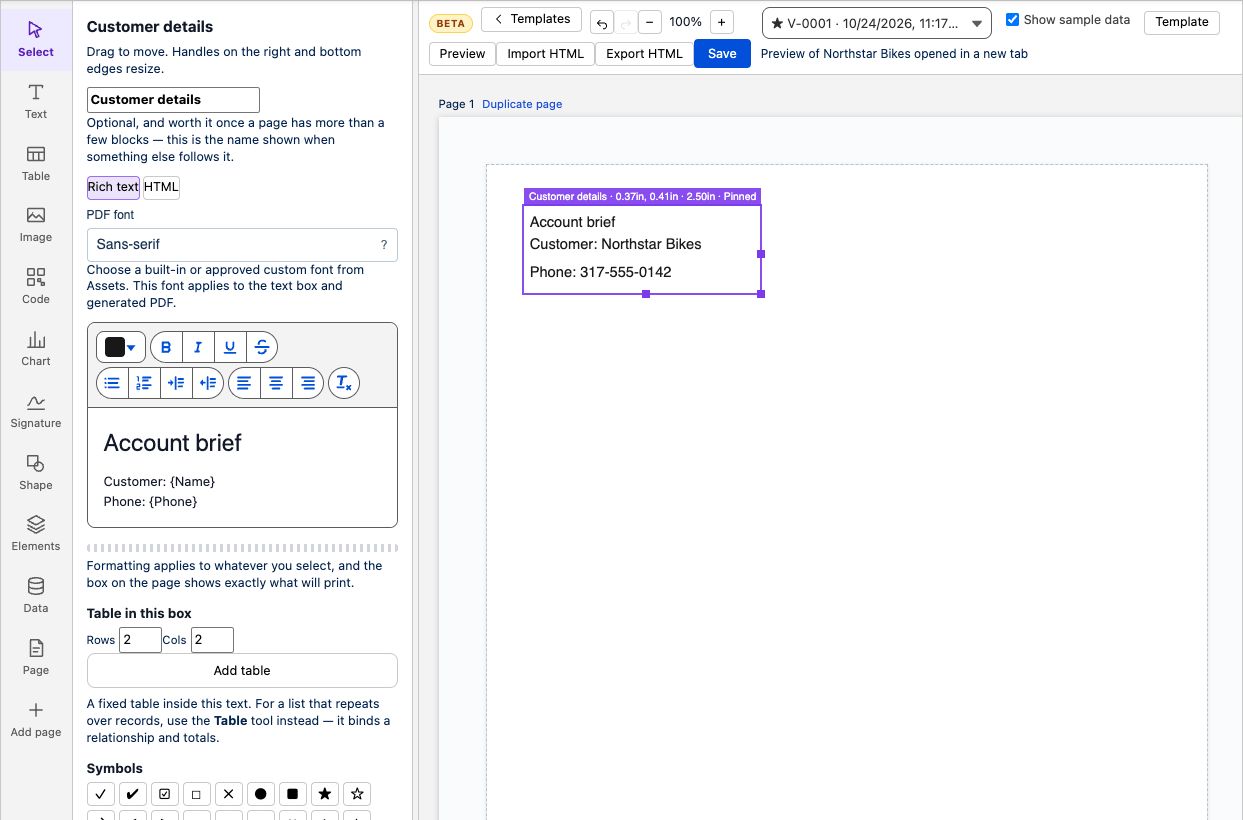
- Select the block to open its properties.
- Edit its content. Drag it to move it; use its handles to resize it.
- Give it a useful Name, such as Customer details or Order totals.
Use Elements to select a block hidden behind another block.
Add Salesforce information
Open Data, choose the fields and related lists you need, and select a preview record. Use the field controls to insert tags, or type a tag such as {Name} in a text box.
Turn on Show sample data to see values from the preview record while arranging the page. The display helps you size boxes; it does not replace a real Preview PDF. Long lists are shortened in the on-screen sample, and some formatting is approximate.
Keep a total below a growing table
- Name the table Line items.
- Select the totals block.
- Set Follows to Line items.
- Set the gap and any keep-together option you need.
- Preview with a record that has enough rows to reach a second page.
The totals block follows the table as it grows. A block pinned to a fixed position stays there instead.
Show one of several alternatives
Use Show only when to give a block a condition. For alternatives that should occupy the same space, put the blocks in the same variant group. Test every condition, including when none of them matches.
Set up the page
Click Page to set paper size, orientation, and margins. Click Add page for another designed page. These Canvas page settings control its PDF.
Save and check
Click Save, then Preview. Review the first page, the last page, long values, empty lists, and page breaks.
Import HTML converts an existing HTML document into Canvas blocks. Keep a copy of the original and check the conversion carefully. Export HTML downloads a reusable HTML copy; it is different from exporting the whole template bundle.
The font picker includes a Salesforce standard-font section for Helvetica, Times and Courier. Test long unbroken words in the generated PDF. Canvas can wrap them in the editor while the PDF renderer uses different line-breaking rules.