Make a document with Flow
Generate a file after a business event and handle failures.
Read as Markdown · Open in the interactive guide
Let a Salesforce Flow make a document when a business event happens.
Before you start: You know Flow Builder and have a tested template. Give the template a stable API Name, such as Opportunity_Summary, and confirm the Flow's running context can access the required data.
If your data comes from a JSON file or another Flow, build the illustrated Generate PDF button.
Make a summary when a deal is won
- Create an after-save, record-triggered Flow on Opportunity.
- Set entry conditions so it runs when the record first changes to Closed Won, rather than on every later edit to a won deal.
- Put document work on an appropriate asynchronous path when required by the rendering method and your transaction design.
- Select + and search for Generate Document. Choose the Portwood action whose description starts Generates a document (PDF, DOCX, PPTX, XLSX). Give the action a label.
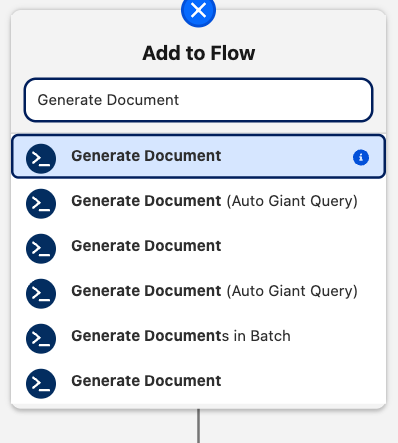
- For a record-triggered summary, set these inputs.
| Input | Example |
|---|---|
| Template API Name | Opportunity_Summary — use your template's actual API Name |
| Record ID | {!$Record.Id} |
| Save to Record | True |
| Document Title | An optional title you build from the record |
| Output Format Override | Leave blank for the template's default |
- Store Success, Error Message, Content Document ID, and Content Version ID outputs.
- Add a Decision: continue only when Success = True.
- Connect the action's fault path to your Flow's error handling too.
- Debug with a test Opportunity, then activate after checking the saved document.
You are done when: One qualifying change creates the intended file, and an unrelated later edit does not create another copy.
Email the generated file
Use the returned Content Version ID with the supported attachment input of Salesforce's Send Email action. Verify the attachment ID type expected by that action. Preview and test with an inbox you control before enabling customer delivery.
Save to Record = False avoids linking the file to the source record; the Generate Document action still creates a standalone Salesforce File. It is not a storage-free PDF action.
When the data can be large
Generate Document (Auto Giant Query) can choose a background path for supported large Word datasets. It takes a Template ID and Record ID. Check Is Giant Query: if true, follow Job ID and wait for completion; otherwise use the returned file IDs.
That action's background route requires a supported V3 query and is Word-only. For other large formats, use the runner or a suitable bulk workflow. A successful job submission does not mean its file is ready yet.