Start with a finished design
Try a finished design, generate its PDF, then build your own Generate PDF button in Flow Builder.
Read as Markdown · Open in the interactive guide
Start with a file someone actually needs. Open one of these finished PDFs, try its links or scan its equipment labels, then take the HTML and data into your own org.
| Build this | Try this in the finished file | Make it your own |
|---|---|---|
| Commercial proposal | Click Harbor reserve on the cover. Find the battery options, then jump back to the contents. | Nested pricing tables · Contents, links and watermarks |
| Renewal decision brief | Read the recommendation, then find the team whose adoption is bringing the account below target. | Design a brief that changes with the data |
| Field-service sheet | Scan either equipment card. Its QR code contains the asset identifier printed directly below it. | Make a scannable service sheet |
A signer can also move from a Salesforce Screen Flow to a document prepared in the background. Build the event-driven signing handoff.
Watch the studio chapters to follow a buyer into the quote, a technician to the work order, and a signer through the Flow.
Run a design someone has already set up
Open Guide · Try a document design from the page your admin provided. An admin can also open it from Setup → Flows and select Debug. Leave rollback mode off if you want to keep the generated file.
Choose Renewal decision brief, then Generate PDF. The practice Flow includes fictional customer data. Try another design after you finish the first.
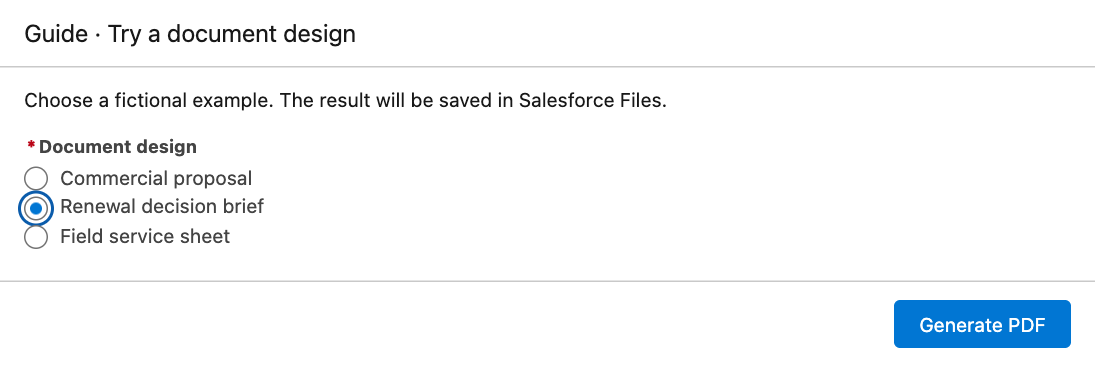
On the next screen select Open your generated PDF in Salesforce Files. In the renewal brief, look for the recommendation to Book an adoption review. If a design fails, check that its template is active and its API name matches the table below.

Put one design in your own sandbox
You can build the same experience from the Salesforce screens. Download the design files, unzip them, and pick one matching HTML and JSON pair. The HTML is the layout. The JSON contains the sample customer and figures. Start with renewal-brief.html and renewal-brief.json. The file ending in -reading.html is the already-filled reading copy.
- In Portwood → My Templates, select New Template → Bring an Existing Template. Enter a name people will recognize. In API Name, use the matching value below if you also want the included practice Flow to find it.
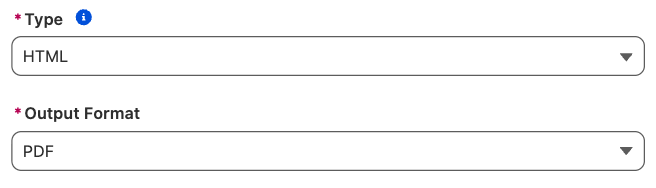
- Under Data Source, select JSON Data (from Flow). Set Type to HTML and Output Format to PDF. Select Next → Create Template.

| Design | HTML and JSON filenames start with | API name used by the practice Flow |
|---|---|---|
| Commercial proposal | field-quote |
Guide364_Studio_field_quote |
| Renewal decision brief | renewal-brief |
Guide364_Studio_renewal_brief |
| Field-service sheet | service-sheet |
Guide364_Studio_service_sheet |
- The template editor opens. Under Upload New Version, select Choose File, choose the template HTML and select Save as New Version. In Your Templates, check that the version is active. Keep its API name for the next step.

Build a button that generates your design
- In Setup → Flows, select New Flow → Screen Flow. Select + → Screen, add Display Text with a short invitation to generate the design, and change the screen’s Next button label to Generate PDF.
- Open Toolbox → Manager → New Resource. Choose Text Template, give it the API name
SampleData, and select View as Plain Text. Open the matching JSON file in a text editor, copy its entire contents into the body and select Done. - Under the first screen, select +. Search Generate Document. Some orgs offer several actions with that name. Choose the Portwood action whose description starts Generates a document (PDF, DOCX, PPTX, XLSX). Its inputs include both JSON Data and Template API Name. Give the action a label such as Make the renewal brief.
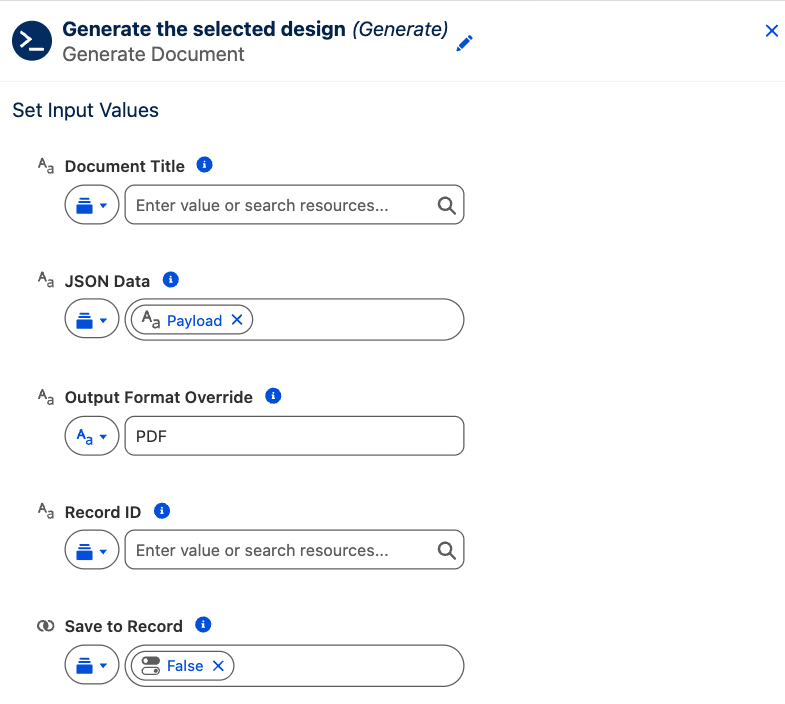
- Paste the active template’s API name into Template API Name, select SampleData for JSON Data, enter PDF for Output Format Override, and set Save to Record to False. You can leave Record ID blank for this standalone sample. The working three-design example below calls its JSON resource Payload.
- After the action add a Decision. For success, select the action’s Success output and compare it to True. On that branch add a Screen with Display Text telling the person to open Files → Owned by Me and look for the new PDF. On the default branch, display the action’s Error Message. Connect the action’s fault path to a screen that displays the Fault Message.
- Save the Flow and select Debug. Leave rollback mode off, select Generate PDF, then open the new File in Salesforce. Compare its recommendation and figures with the finished example. To attach a real document to a record, pass that record’s ID and turn Save to Record on. Generate a document from a record-triggered Flow
For real orders, supply the same data shape from your own records or an Apex data provider. The sample keys are names you and the HTML share. Choose a data source
Brief your AI like a designer
Give the assistant your data shape, the sample HTML, and a change you can recognize in the finished document. For the proposal, try this request.
Adapt the proposal for a purchasing manager. Keep the quoted net prices, currency and section IDs. Give optional services their own panel, keep one-time charges separate from monthly charges, and make the contents links follow their sections even when pricing spills onto another page. Return one HTML file and tell me which three things to check in the PDF.
For a renewal brief, describe what should happen when usage is missing. For a work order, specify the actual identifier a technician should scan. Open the generated file and try that task before you save the new template version. Download the AI authoring reference
Give readers a text edition
Each sample also has an HTML reading copy with a document language, headings, labeled prices or usage figures, and the equipment identifiers in text. These are filled examples you can open in a browser or use with a screen reader. Read the proposal · Read the renewal brief · Read the work order
The three generated PDFs contain selectable text and lack PDF structure tags and document-language metadata. If your customer requires a tagged PDF, check the exported file’s tags, language, reading order, link names and table headers with your accessibility tools, and test the file with their assistive technology. Share the text edition alongside the visual copy.