Build a quote with nested bundle pricing
Group components by bundle, reconcile one-time and monthly prices, then send this exact quote for signature.
Read as Markdown · Open in the interactive guide
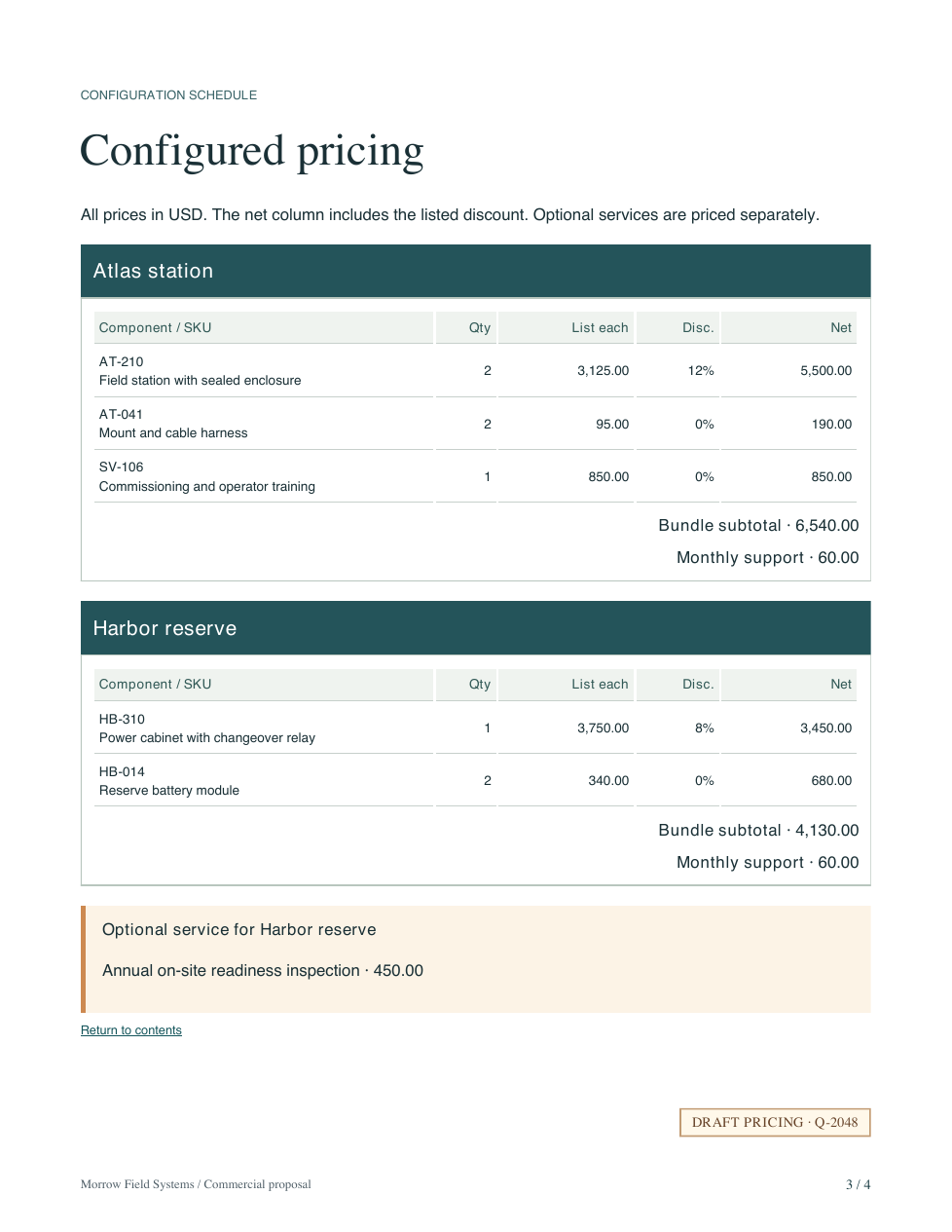
A buyer needs to see which options belong to each configured product and what they cost. This quote gives each bundle an outer table, then prints the components in a smaller table inside it. A separately priced inspection stays beside the Harbor bundle and out of the order total.
Open the example quote · Read the text edition · Download the design files
Bring the quote into the right shape
Use your quoting system’s approved, already-priced values. For each bundle, supply its key and display name. Put included lines under its Components.records and unselected optional offers under AddOns.records. Include totalSize so an empty options list suppresses its panel. The sample data shows each collection in full.
| The buyer sees | What your Flow or provider supplies |
|---|---|
| Configuration | One bundle per parent line, in selling order, with a stable key for the contents link. |
| Included items | Each child of that parent, with SKU, description, quantity, list unit price, discount and the net line total. |
| Options | Separately quoted extras. A selected option that is already included in the bundle price should have one place in your total. |
| Commercial summary | Currency, approved one-time net, recurring price per billing period and payment installments. Keep internal cost and margin out of the payload. |
For Salesforce CPQ, save the priced quote first. Start with its lines and inspect the Required By relationship to identify an option’s parent. A quote line group is a presentation grouping and can contain several independent bundles. Confirm how your org prices bundled options, prorates subscriptions and rounds line totals. The sample works without installing CPQ. Map your org’s prices into the sample shape. Salesforce’s Required By field · Generate from prepared data
Nest the component table
Paste the full example to keep the styling. The short version below shows where to open and close both loops.
{#Bundles}
<table class="bundle">
    <tr><td><h3 id="bundle-{Key}">{Name}</h3></td></tr>
    <tr><td>
        <table class="lines">
            <thead><tr><th>Component</th><th>Net</th></tr></thead>
            <tbody><tr><td>{#Components}{Description}</td><td>{Net:#,##0.00}{/Components}</td></tr></tbody>
        </table>
        <p>Bundle subtotal · {SUM:Components.Net:#,##0.00}</p>
    </td></tr>
</table>
{/Bundles}
The outer loop wraps the entire bundle table. The inner loop opens and closes in the component row, so that row repeats inside its own bundle. Put the subtotal outside the component row while the bundle is still in scope. Keep short component rows together and let long bundles flow over the page. For large schedules, inspect the continuation page and its header. Repeating table headings
Reconcile the order before sharing
In the sample, Atlas totals 6,540.00 and Harbor totals 4,130.00. The cover shows USD 10,670.00 one time and USD 120.00 per month. The 450.00 optional inspection is separate. On the last page, the three one-time installments add back to 10,670.00. If your CPQ parent already carries the price of its children, print the parent net as the bundle subtotal. Summing the parent and those same included children would charge twice.
Try a bundle with no options, a second bundle with its own components, and one bundle big enough to cross a page. Then follow the cover links to both configurations. Try the sample in Salesforce
Send this exact quote for signature
- Once the quote is approved, generate the final PDF with
IsDraftset tofalse. In the Portwood Generate Document action, pass the approved Quote record ID, the priced JSON Data, and Save to Record = True. Give the file a recognizable title with the quote number and revision. - On that quote, open Files and check the PDF and amount. In Portwood Signature Sender, choose New signature request → Salesforce file, then select that exact revision. Assign a signature field to each recipient, review the pages and send. Prepare a finished PDF for signature
- Open the request to check its status and retrieve the signed PDF and certificate. The event-driven Screen Flow prepares its own receipt-backed agreement. Use the Salesforce File route above when the buyer must sign the exact approved pricing PDF. Find the signed file · Build the event-driven handoff