Track, resend, or stop a request
Follow signing progress and find the completed PDF.
Read as Markdown · Open in the interactive guide
Track a request, replace an expired link, or stop an unsigned request.
Find the request
Open the related record and look under Recent requests or the sender's previous-request list. Use Refresh requests if someone has just completed a step. The Portwood Signature Requests app tab also lists request records.
Open a request to check signer status, delivery information, and its audit records.
Resend
Use Resend for an eligible request. Unsigned signers receive new links and a fresh signing window. Their old links stop working, and email verification resets.
Tell the signer to use the newest invitation. Resending does not edit the original document or field placements.
Revoke
Use Revoke when the remaining people should no longer sign. Review the confirmation first: revocation invalidates the remaining unsigned links.
Revoke can send a branded Signature Revoked email to signers who have not signed. The email can be customized under Portwood → Email Templates. If the editor is missing that email type, your administrator can add it after an upgrade. The built-in notice still sends. For uploaded-PDF requests, the default email title is Document.
Completed or cancelled requests do not offer the same resend/revoke actions. If the document needs changing, prepare a new request and stop the old unsigned one where appropriate.
Require typed signatures
An administrator can turn on Allow Typed Signatures Only in Portwood → Signatures for the whole org, or on an individual template. When enabled, signers type signatures and initials; the draw pad and its Clear button are hidden. The org setting still applies when the template setting is off. Both settings are off by default.
Set expiration and reminders
An administrator sets the default in Portwood → Signatures. A send can override expiration within the supported 1–365 day range. A later change to the org default does not rewrite the signing window on a request already sent.
Reminders use hour offsets such as 24, 72, 168. They go to pending signers while the request remains valid, subject to the configured scheduled job and email setup.
Signing in person
Portwood Admin users can use Sign In Person when it is offered for a pending signer. Confirm the identity-check attestation only after doing that check. The bypass is recorded in the audit history.
Find the completed file
Open Files on the related record and inspect the signed PDF. Guided signing adds the marks and a Certificate of Completion with signer and verification information. The verification link supports checking the received file against the recorded document hash.
An image merged into an ordinary document is not a completed Portwood signing request and does not create the same signing audit trail.
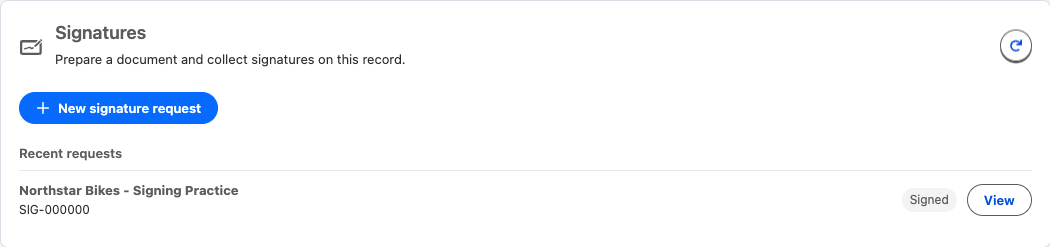
On Recent requests, Resend and Revoke appear beside View for Sent and In Progress. Revocation still takes effect if no Org-Wide Email Address is configured. Check email status before assuming anyone received the notice. Declined recipients can also receive it if they have not signed.