Install Portwood
Install the current release and give people access.
Read as Markdown · Open in the interactive guide
Install Portwood once, then give each person the access they need.
Use a Salesforce administrator who can install packages and assign permission sets. Assigning per-user seats also requires Manage Package Licenses. Try a sandbox before changing a live org.
1. Install the package
Open the Portwood listing on Salesforce AppExchange for the managed package. Choose the production org or sandbox where you want to install it.
Sign in to the intended org. Choose Install for Admins Only, then complete Salesforce's installation prompts. When installation finishes, open Setup → Installed Packages and find Portwood. The current release is 3.65.0.
2. License the people who will use Portwood
In Setup → Installed Packages, open Manage Licenses on the Portwood row. With per-user licensing, assign a seat to each person who will build templates, generate documents or send signature requests. If your organization uses a site license, users are already covered. See who needs a license, including guests and portal signers
3. Give people their permission sets
- Open Salesforce Setup.
- Enter Permission Sets in Quick Find and open it.
- Open Portwood Admin.
- Choose Manage Assignments → Add Assignments.
- Select your user and complete the assignment.
Give other people Portwood User when they need to generate documents or send signing requests. Give Portwood Admin to people who build and maintain templates.
Select the people who need the tool. Some Salesforce licenses cannot receive all of these permissions; assigning a set to an unsupported license can also prevent a later upgrade.
4. Check PDF rendering
In Setup, open Release Updates. If your org offers Use the Visualforce PDF Rendering Service for Blob.toPdf() Invocations, open it and follow Salesforce's steps to enable it.
The update's availability and controls depend on your Salesforce release. A disabled Enable Test Run button is not proof that the update is active. If PDF output shows raw CSS or missing images, ask your Salesforce administrator to check the update and contact Salesforce Support if it cannot be enabled.
5. Open Portwood
Open the App Launcher, search for Portwood, and select the app. You should see the Template Library and the choices Bring an Existing Template and Start from a Blank Canvas.
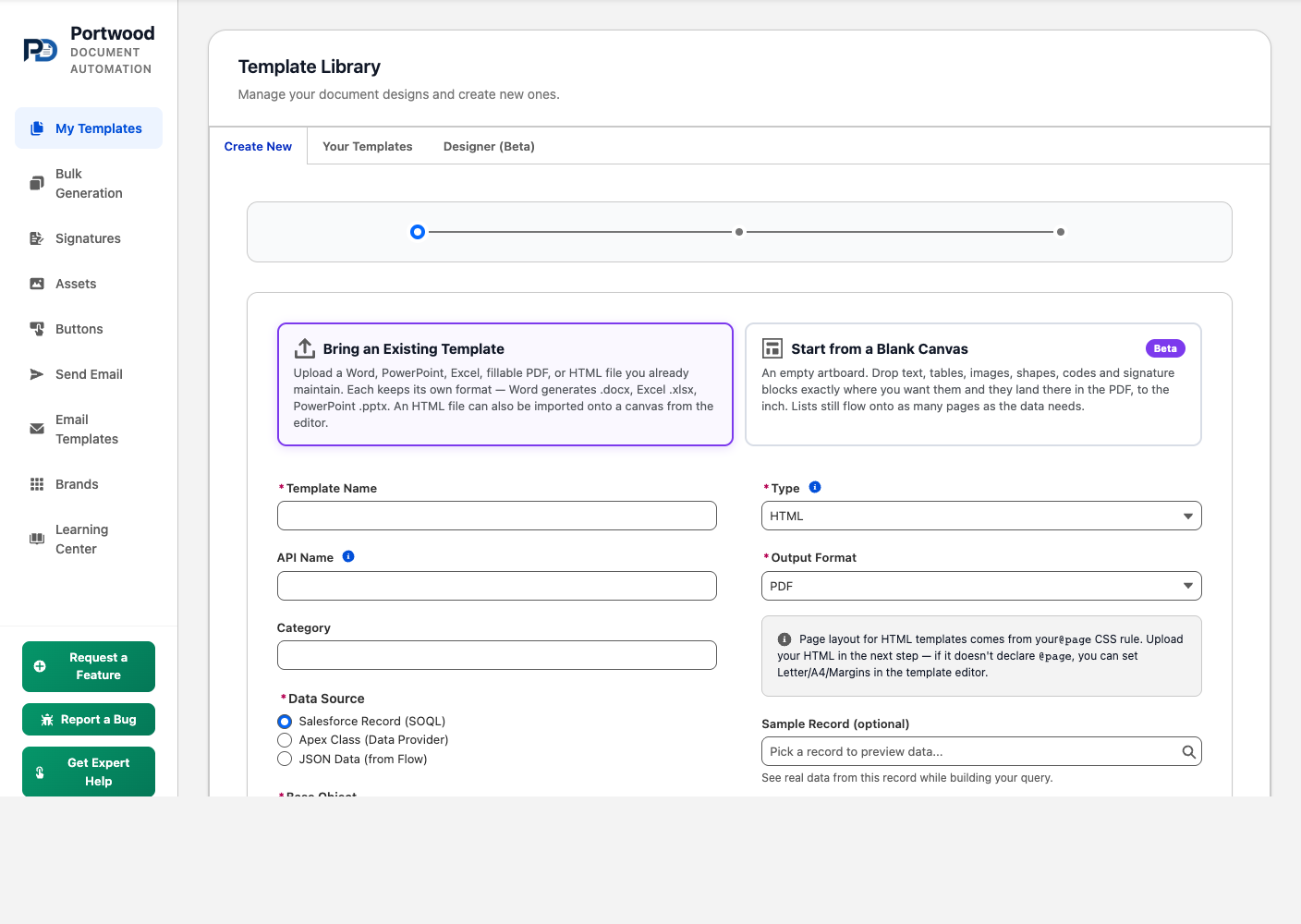
You are ready when: You can open Portwood and begin creating a template.
What needs its own setup?
- A Generate component on a record: Add Portwood to a record page.
- External signing: Set up external signing.
- One-click button management: Create document and email buttons.
- AI authoring: Get help from AI.
Installing the package does not automatically add components to your record pages.