Make your first document
Create a small Account brief and see real data in a PDF.
Read as Markdown · Open in the interactive guide
Make a small Account summary. Start with a title and two fields; you can add tables and pictures after the first PDF works.
Before you start: You have Portwood Admin, Portwood is installed, and you have an Account with a name and phone number. The examples use Northstar Bikes; any test Account is fine.
1. Make the template
- Open App Launcher → Portwood.
- Under My Templates → Create New, choose Start from a Blank Canvas.
- Enter My First Account Brief in Template Name.
- Set Base Object to Account. If suggestions appear, choose the standard Account.
- Click Create & Open Canvas.
If the template list appears, use the template's Show actions → Design menu to open its Canvas.
2. Choose a record to preview
- Click Data on the left of the Canvas.
- In Preview with this record, search for your Account and select it.
- Check that Account Name and Account Phone are included in the field list.
- Click Done.
This record is your practice example. Choosing it does not limit the template to that Account.
3. Add the words
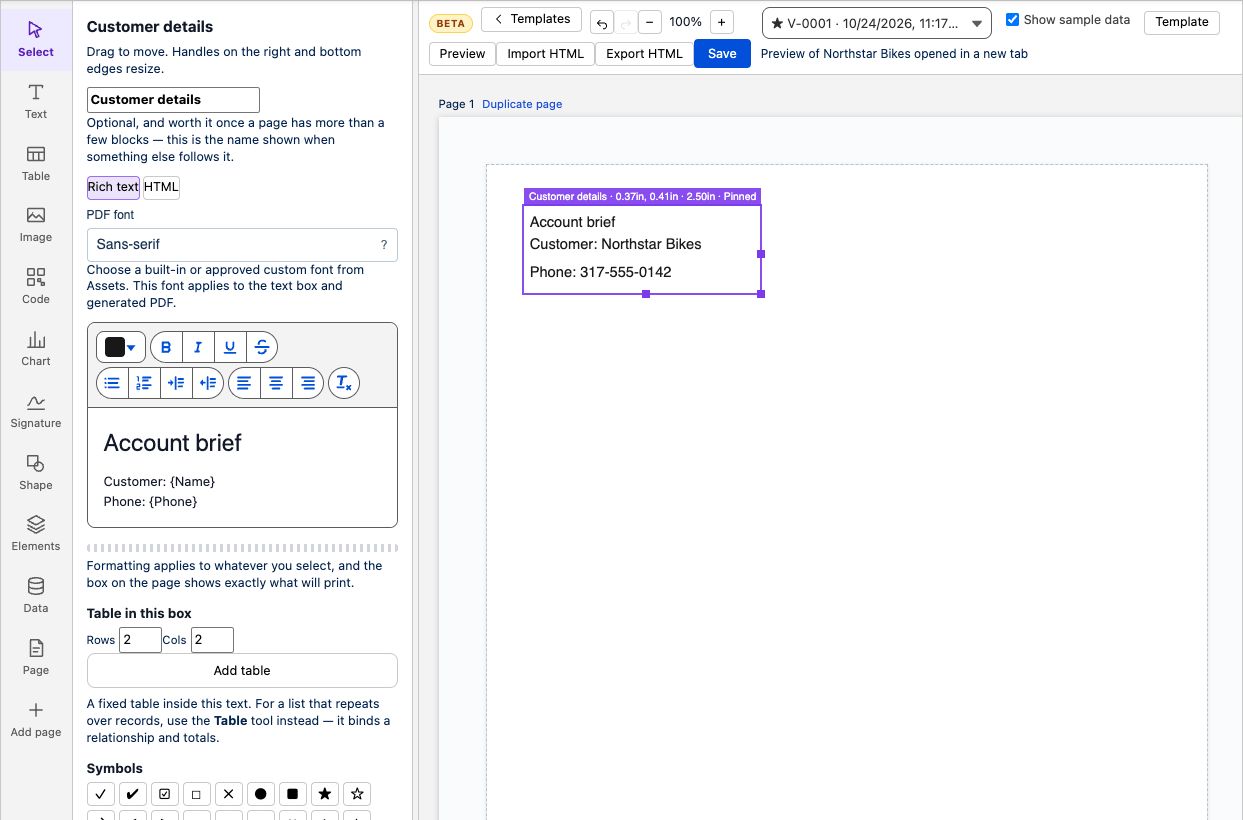
Click Text on the left, then click inside the white page. A text box appears.
In the box's content editor, enter:
Account brief
Customer: {Name}
Phone: {Phone}
Drag the box to where you want it. Make it wide and tall enough to show all three lines.
Click Save.
Keep the braces around {Name} and {Phone}. Those are the places Portwood fills in for you.
4. See the result
- Click Preview in the Canvas toolbar.
- Open the generated PDF.
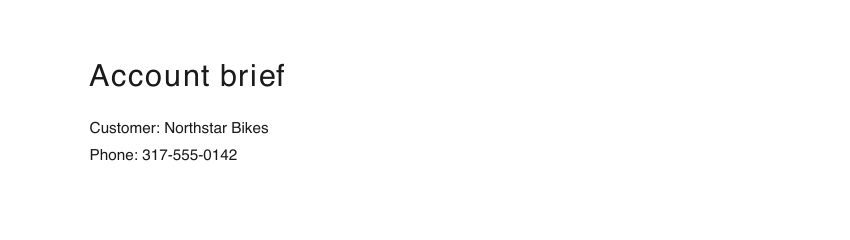
- Check that your Account's name and phone number appear in place of the two tags.
You are done when: The PDF says Customer: Northstar Bikes (or your Account's name) and shows the phone number from that Account.
If your result is different
- The field is blank: Open the Account and check that it has a value. Then check that the field is included under Data.
- Preview asks for a record: Return to Data and select a record from the search results.
- Text is cut off: Select the box and make it taller or wider.
- Your edit disappeared: Click Save before leaving the Canvas.