Reuse terms and HTML snippets
Reuse a clause, fill in record fields, and place a signature beside it.
Read as Markdown · Open in the interactive guide
Write a clause once and reuse it in several documents. A snippet can hold both fixed wording and Salesforce merge tags. The same clause can address each customer by name.
Create shared content
- Open Portwood > Assets > Terms & snippets.
- Select New shared content.
- Enter a name, optional category, and permanent asset key.
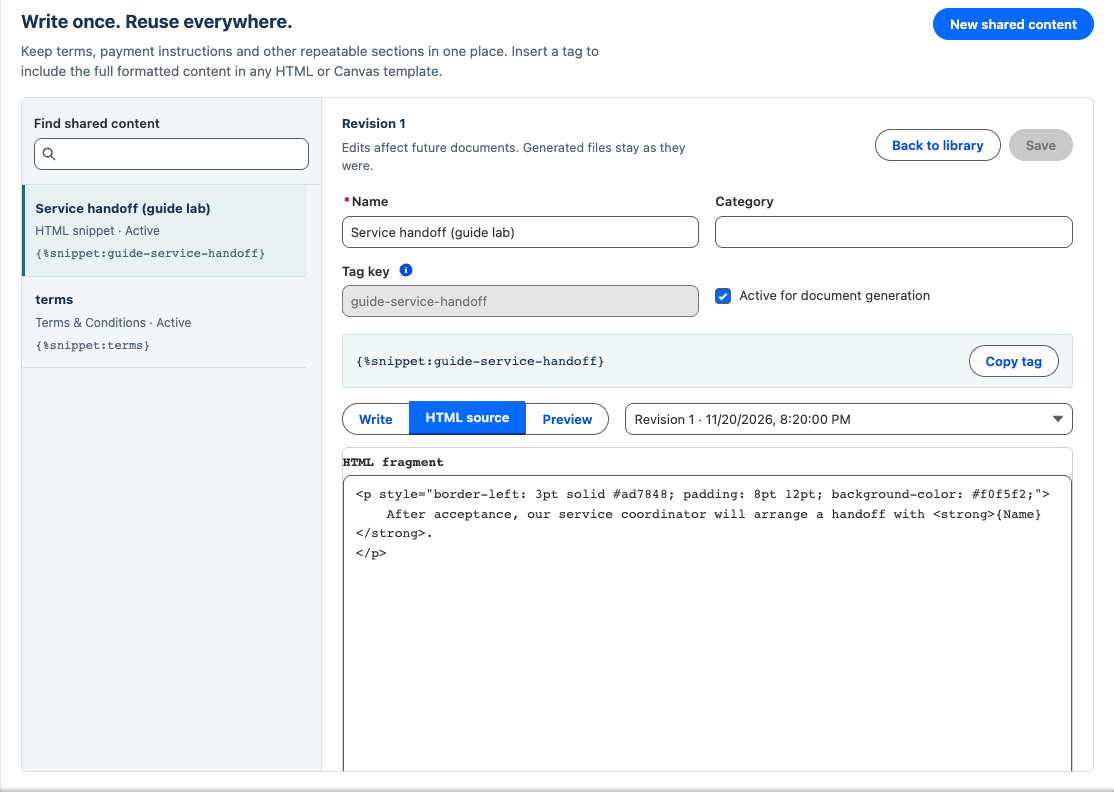
- Use Write for common formatting, HTML source for exact inline styles and tables, or Preview to review the rendered section.
- Save the content and choose Copy tag.
The copied tag looks like this:
{%snippet:terms-and-conditions}
Insert the tag where the complete section should appear. In HTML or Canvas authoring, use the shared-content insertion control when available. Keep the tag on its own line when the surrounding layout needs a separate paragraph.
Put a customer’s name inside a snippet
In Terms & snippets, create a snippet with the key
guide-service-handoff. In HTML source, paste this paragraph and save it with Active for document generation selected.<p>After acceptance, our service coordinator will arrange a handoff with <strong>{Name}</strong>.</p>In your Account template, include Account Name in the selected fields. Paste the snippet’s copied tag where you want the paragraph to appear.
{%snippet:guide-service-handoff}Select a sample Account in the designer and generate its PDF. For Alder Works, the last words are “a handoff with Alder Works.” You can see them under Handoff and acceptance on page four of the finished service review.
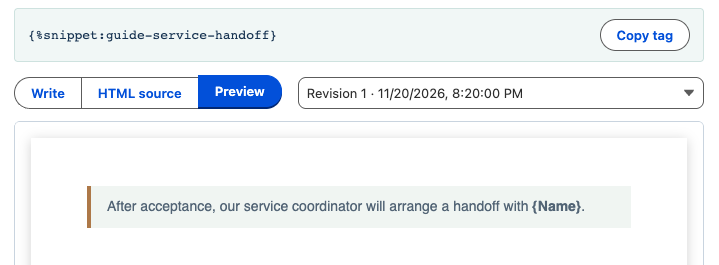
The snippet editor’s Preview shows the HTML formatting. You’ll still see {Name} there because the snippet editor has no record selected. The template’s sample record supplies the value when you generate.
Using a snippet in a list? Suppose your snippet contains <p>Hello, {Name}.</p>. Put its tag inside {#Contacts}…{/Contacts} on an Account template and select Contacts → Name in the template data. Each greeting uses that Contact’s name. Place the same tag outside the loop to use the Account’s name.
Add a signature below a shared clause
Keep the reusable wording and fields like {Name} in the snippet. Put the signing fields directly in the main template. For example, paste this into the template body where the customer should initial and sign the clause above:
<div>{%snippet:guide-service-handoff}</div>
<p>Customer initials</p>
<p>{@Signature_Customer:1:Initials}</p>
<p>Customer signature</p>
<p>{@Signature_Customer:1:Full}</p>
Choose Customer as the signer’s role. In a practice request, check that INITIAL HERE and SIGN HERE both appear under the clause.
Portwood counts signing fields before it inserts the snippet. If the only signing tags are inside the snippet, a default signature and signed date can still appear. Initials and date-picker tags can show up as plain text. If you are moving signing tags into the template, remove the originals from the snippet so the signing field lands in the intended place. Send a template for signature
Try the clause as a teammate
Generate a practice document as someone who normally uses the template. Check that the clause appears with that record’s details. If another editor will maintain the wording, have them open the same clause and save a practice revision in your sandbox. If Salesforce reports insufficient access to the asset, ask your administrator to check the teammate’s Portwood permission set and access to that asset. Set up access
Revisions and activation
A shared-content asset uses the latest active revision. Changing only Active for document generation updates the asset status without creating another content revision. Editing the name, category, or HTML content creates a new revision when you choose Save new version.
Use Revision history to inspect an earlier version. Restore as new revision copies that version into a new revision while retaining the intervening history. Inactive or missing content is reported during generation instead of being silently omitted.
Formatting and fonts
Use HTML body fragments with paragraphs, headings, lists, tables, links, alignment, page breaks, and inline styles. The editor keeps the content inside its frame when switching between Write, HTML source, and Preview. Pasted text keeps its meaningful spacing and paragraph breaks.
Approved custom font tags can be used inside the fragment. PDF preview and generated PDF output use the approved embedded font. Native Word, Excel, and PowerPoint output carries the font family and formatting; recipients need the font installed in their Office application for the same typeface to display.
Images and other reusable assets can be referenced with their normal asset tags. Copy the real image or font tag from Assets rather than typing an unapproved key.
Supported templates and output
Shared content is designed for HTML and Canvas templates and is also expanded in supported native Office merge paths. Test the actual output format when the fragment contains complex tables, lists, images, or custom fonts.
PowerPoint templates produce native PPTX files. PDF is not an available output choice for PowerPoint templates; use Word, HTML, or Canvas when the finished document must be PDF.
Limits and safety
Snippets are body fragments, not full HTML documents. Scripts, event handlers, external stylesheets, executable CSS, data-URI images, and unsafe URLs are rejected. Add document-wide styles and page settings to the template.
Select every field and relationship the snippet uses in each template where you reuse it.
A snippet can contain another snippet. Portwood detects cycles and stops on a missing or inactive key. The expansion allows up to eight nested levels, 100 distinct keys and 1,000,000 characters after expansion. A saved fragment is limited to 250,000 characters. Use Revision history → Restore as new revision to recover the last working text.