What a signer sees
Review, fill fields, consent, and finish signing.
Read as Markdown · Open in the interactive guide
If a sender gives you a public Portwood signing link, you can review and sign without buying a license or creating a Salesforce account. Use the link addressed to you.
Already on a Salesforce screen with a Prepare agreement button? See how to open, sign and return to that screen.
Open the link
The invitation identifies the document. Open your own link; each person has a link assigned to them.
If email verification is required, request the code, check the intended inbox, and enter the code. Some requests pre-fill the email address. If verification is off, the link opens the signing document directly.
Review and complete the fields
- Read the document.
- Follow the highlighted signing fields and progress counter.
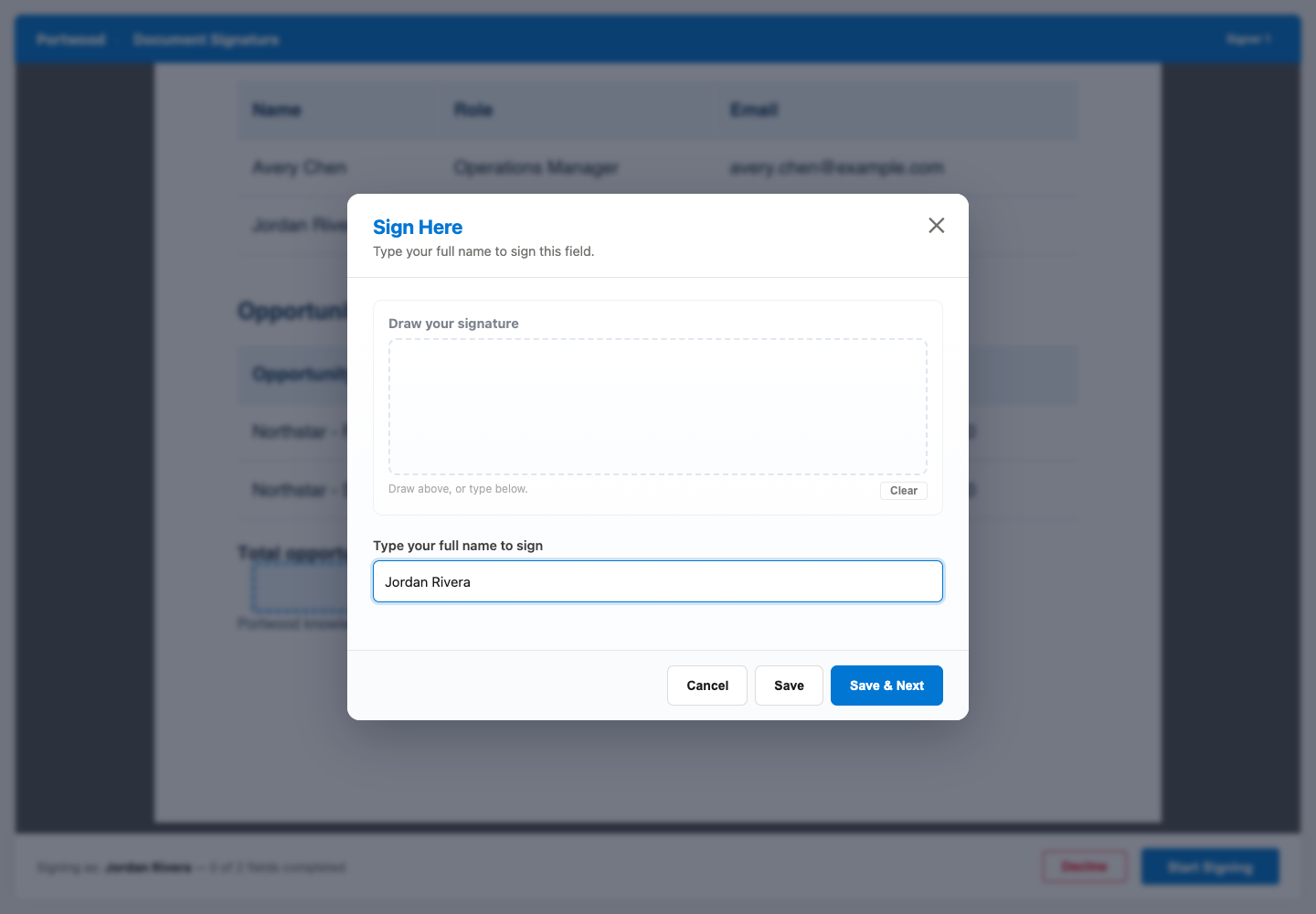
- At a signature or initials field, draw with your mouse/finger or type the value.
- Choose Save to return to the document or Save & Next to continue to the next field when offered.
- Complete any requested date fields.
- Review the final confirmation, give electronic-signature consent, and submit.
On the signing page you can edit the typed name with ink still on the pad. The drawing takes precedence when ink is present. Clear the pad to use the typed name. If the org or template requires typed signatures, type both signatures and initials.
Date signed fields fill automatically. A Date picker field needs a date you select.
After signing
If other people still need to sign, you may see a waiting confirmation. When everyone finishes, Portwood creates the completed file on the related Salesforce record. Depending on the request's delivery settings, completion emails can also carry the finished file.
Active verification and signing screens can use the selected company's branding. The final success and waiting-for-other-signers cards are intentionally plain.
If you need to stop
Some signing flows allow you to leave and resume through the same link while it remains valid; verification may be required again. If Decline is offered, use it to decline and optionally explain why. Contact the sender if the document or recipient details are wrong.
If the link does not work
Ask the sender to check whether it expired, was revoked, was replaced by a resend, or has already been completed. Use the newest link after a resend. On a sequential request, your turn may not have started yet.
The signing viewer redraws visible pages when you zoom. Korean and other non-Latin signer names and dates are supported in the signed PDF and certificate. The decline, waiting and final confirmation cards use a plain layout.