Find the right merge tag
See what tags are available, where to find your field tags, and what each family does.
Read as Markdown · Open in the interactive guide
A merge tag is a small instruction inside braces. Portwood replaces {Name} with a name, repeats a row for {#Contacts}, or draws a chart for {Chart:...}. You can build a useful document with just fields and a loop; the rest are here when you need them.
Salesforce Custom Labels
You can place a Salesforce Custom Label directly in a template:
{!$Label.Your_Label_Name}
Portwood resolves it when the document is generated and uses the running user's Salesforce language. Subscriber-org labels use the form above; namespaced labels can use {!$Label.namespace.Label_Name}.
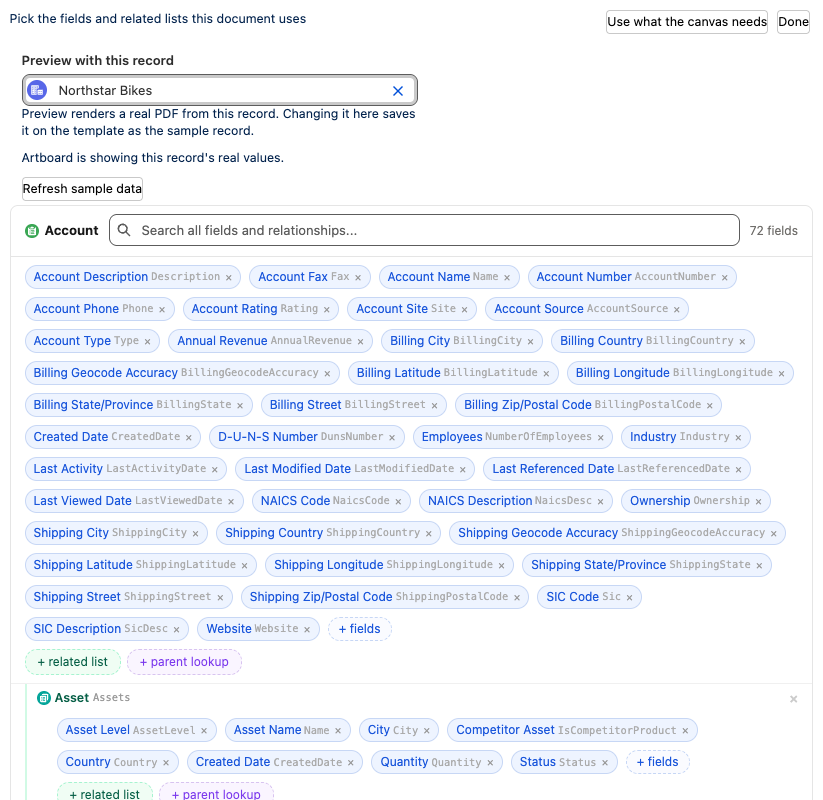
Find the tags for your own Salesforce data
- Open your template and its Data or query-builder controls.
- Select the base record, fields, parent fields, and related lists the document needs.
- Copy the exact field path or relationship alias into the template.
- Pick a sample record that actually has those values and related records.
- Preview, then generate the final output format.
There is no single fixed list of every Salesforce field tag. Your org supplies standard fields, custom fields, namespaced fields, and relationship names. Query selection supplies the values. A typed tag alone does not add its field to the query. A custom provider or JSON input supplies its own map keys instead.
Tag directory
| I want to… | Start with | Full instructions |
|---|---|---|
| Print a field or a parent record value | {Name}, {Account.Name} |
Fields and formatting |
| Format money, numbers, dates, percent, checkbox, or picklist labels | {Amount:currency}, {CloseDate:MMMM d, yyyy}, {StageName:label} |
Fields and formatting |
| Print a Salesforce Custom Label in the running user's language | {!$Label.Payment_Terms} |
This article's Custom Labels section |
| Print today's date, the current time, or the person preparing the document | {Today}, {Now}, {RunningUser.Name} |
Built-in and user tags |
| Repeat one row per related record | {#Contacts}…{/Contacts} |
Loops |
| Number rows, group by a field, or use root data from inside a loop | {RowNumber}, {#GroupBy … by …}, {~Root}…{/Root} |
Grouping and scope |
| Show optional content or one of two messages | {#IF Amount > 10000}…{:else}…{/IF} |
Conditions |
| Count or total related records | {COUNT:Contacts}, {SUM:Opportunities.Amount:currency} |
Totals |
| Add a chart | {Chart:Opportunities:StageName:donut} |
Charts and options |
| Add an image, asset, barcode, or QR code | {%LogoUrl}, {%asset:company-logo}, {*Website:qr:200} |
Images and codes |
| Insert a reusable formatted HTML section | {%snippet:terms-and-conditions} |
Shared content |
| Place a signature or initials for a role | {@Signature_Buyer}, {@Signature_Buyer:1:Initials} |
Signature tags |
| Print classic approvals | {#Approvals}…{/Approvals} |
Approval history |
| Repeat a Word table header | {RepeatHeader} in the header row |
Repeating table headers |
| Number PDF pages | {PageNumber}, {TotalPages} in Header/Footer HTML |
Page headers and footers |
| Collect an answer from the signer | {?poNumber}, {?poNumber|N/A} |
Signer inputs and writeback |
| Customize a signing email | {SignerName}, {SignatureUrl}, {VerificationCode} |
Email tokens by type |
| Use an approved custom PDF font | {%font:api-name} or {%font:asset-key:revision} inside style |
Font tags and font approval |
Check the output path
| Output | What to check before you commit to it |
|---|---|
| HTML or Canvas to PDF | CSS 2.1 and paged rendering, table growth, actual page breaks, fonts, images, header/footer margins |
| Word to Word | Keep each tag together; use real table rows for repeated records; check the finished DOCX in Word |
| Word to PDF | Word layout is converted; inspect widths, headers, section breaks, and the resulting PDF |
| Excel | Native XLSX output; chart-image tags are currently unsupported; test loop placement in the workbook |
| PowerPoint | Native PPTX output; PDF output is unsupported; inspect the populated slides |
| Fillable PDF | Map actual form fields; this is a separate field-mapping workflow, not an HTML layout engine |
See Choose a template format and the chart output matrix for more detail.
When a tag is blank or remains on the page
Check its spelling and case, confirm its field is selected, confirm its current loop scope, and check the sample record. A missing value can legitimately be empty. An unclosed brace or mismatched block can stop generation. If you need literal braces in HTML prose, use { and }.
Email-template tokens such as {SignerName} belong to the signing email editor. They are a separate token list; use Signing email tokens for the complete list.